Registration Walkthrough
Gearing Up for a Successful Registration
Navigating the Registration Process with the Student Success Team and the Registrar
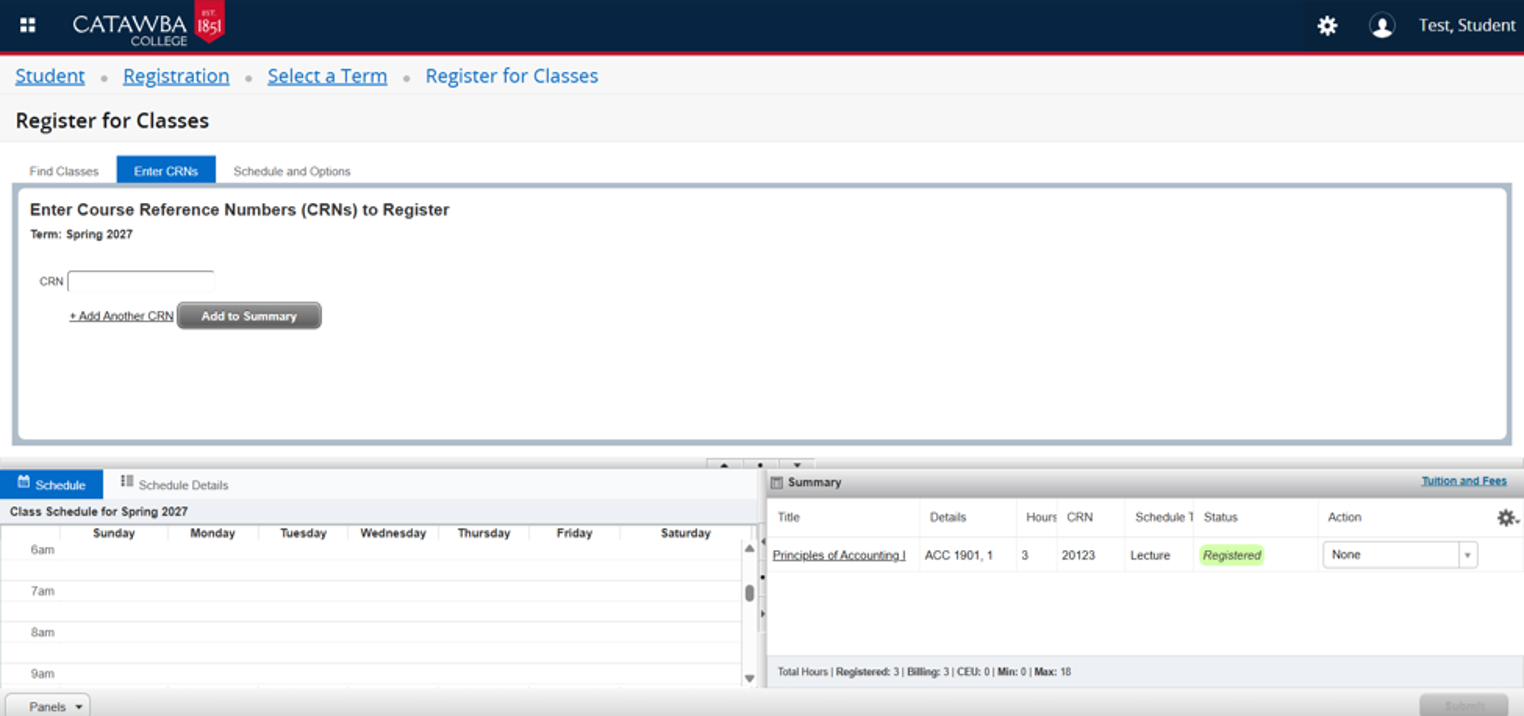
Video Walkthrough
Student Registration in Banner 9 Self-Service
Steps to Register
Step 1: Go to my.catawba.edu
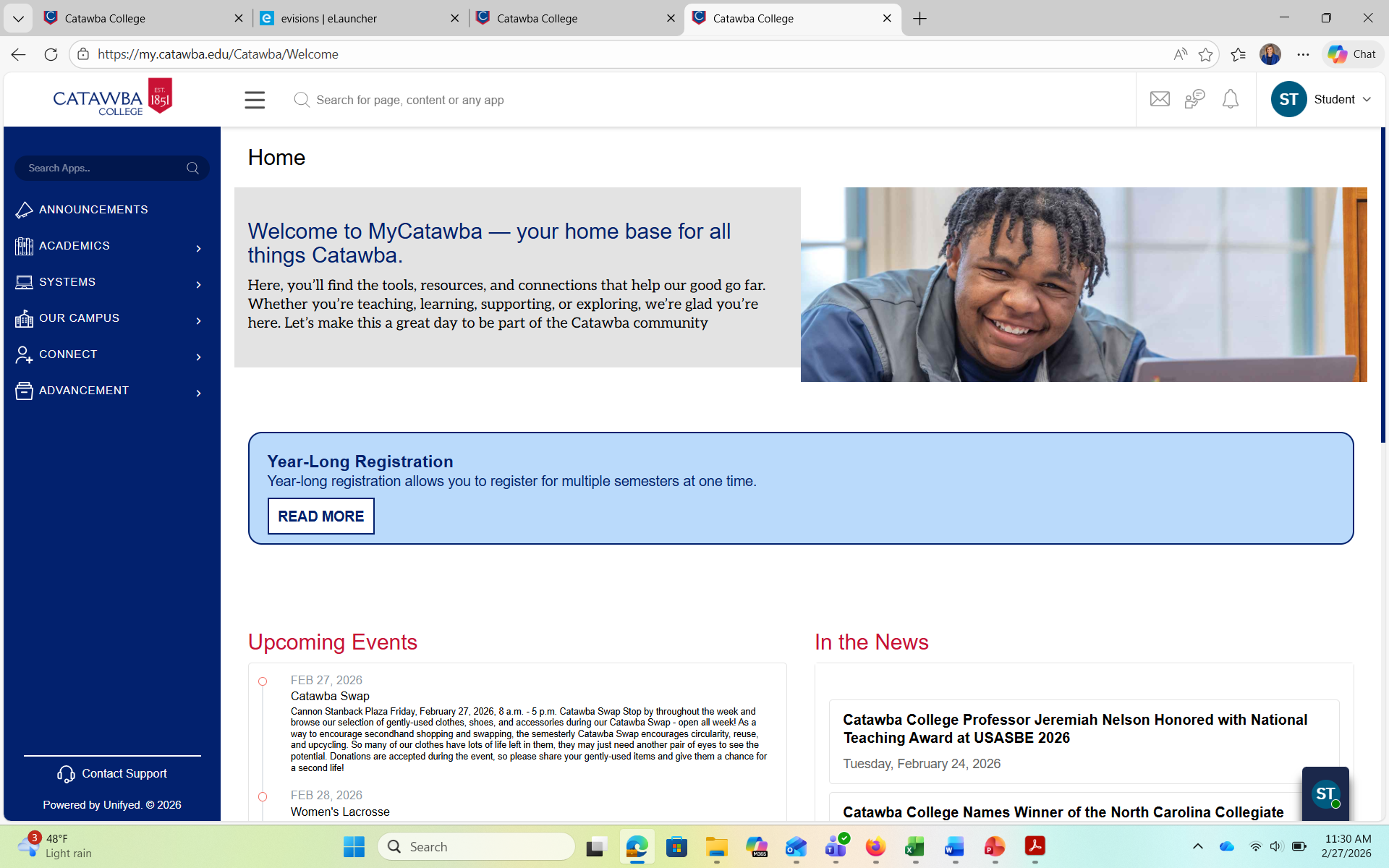
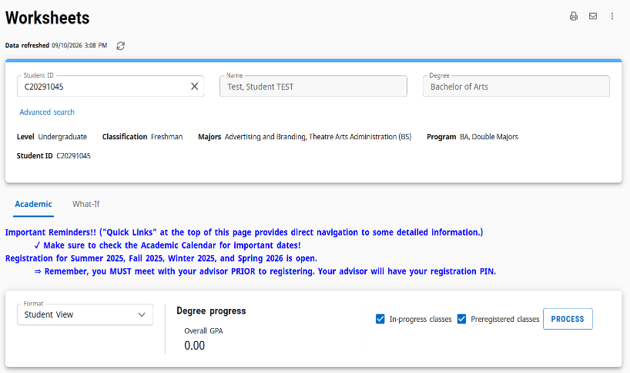
Step 2: From the Academics Tab, Click on “Student Dashboard”.
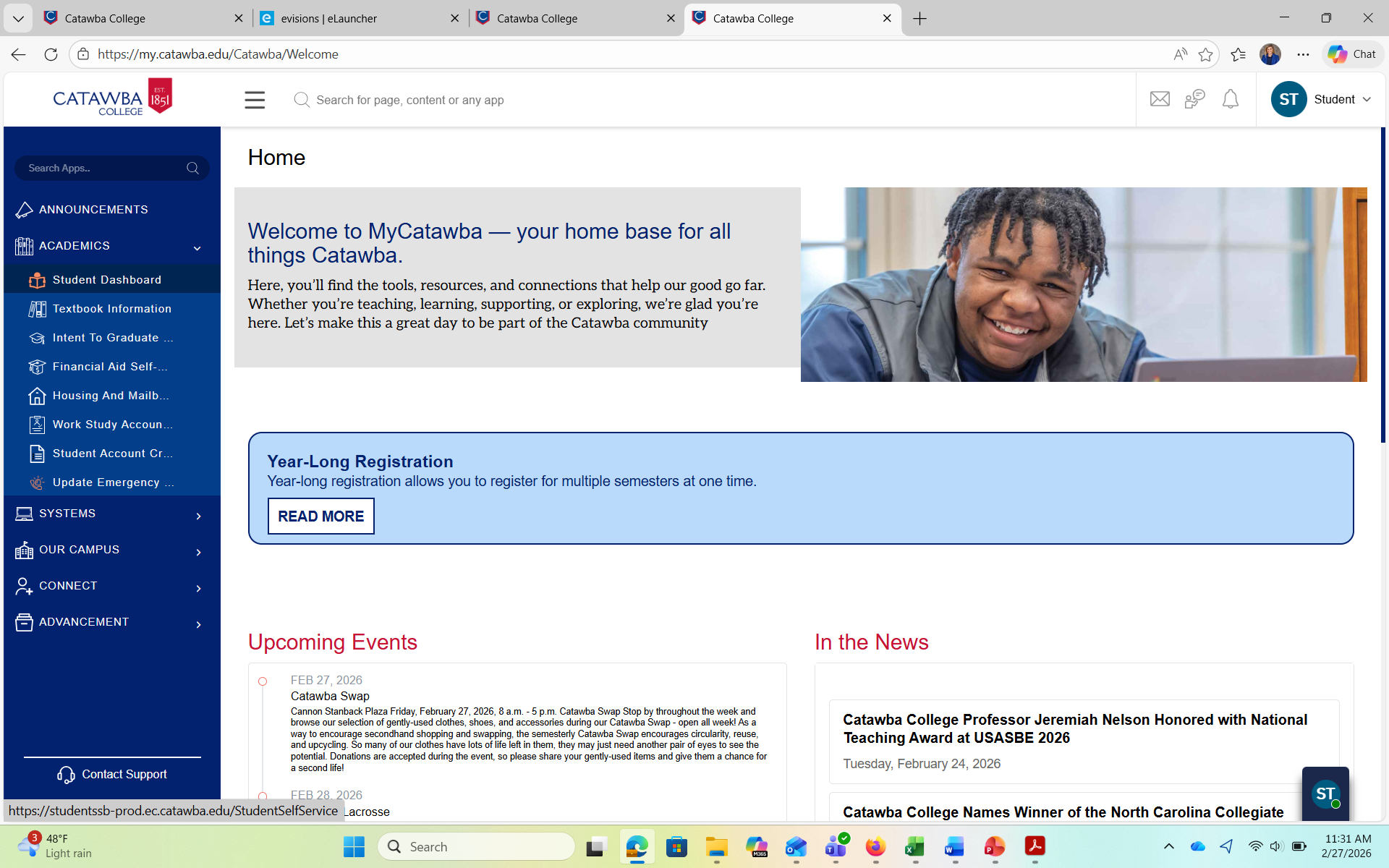
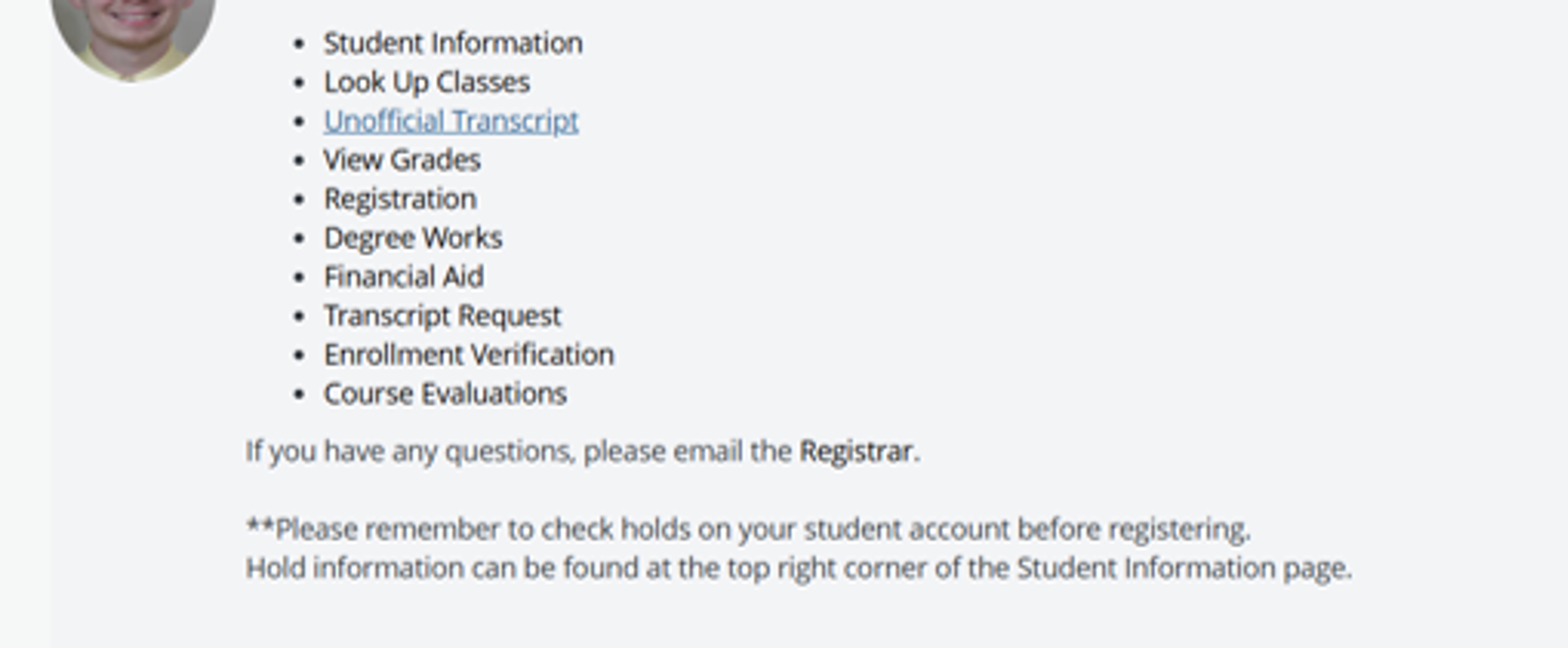
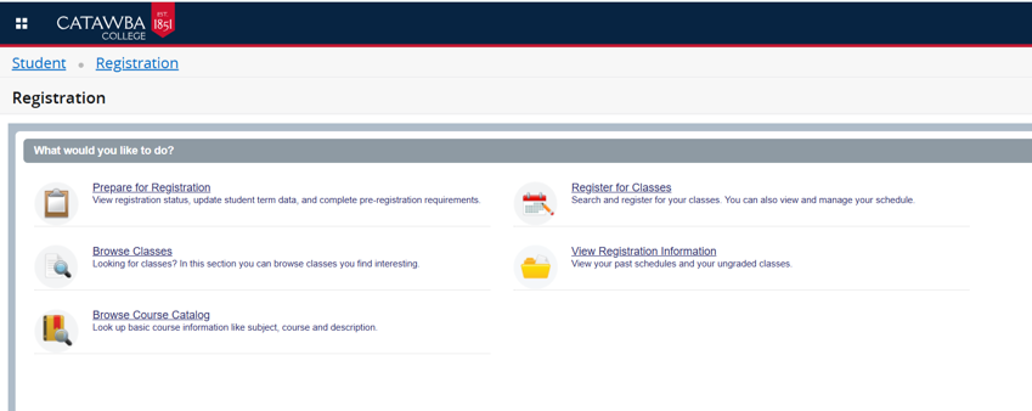
Step 3: The Student Dashboard will take you to the “Student Information” screen. From this screen, you will click on “Registration”.
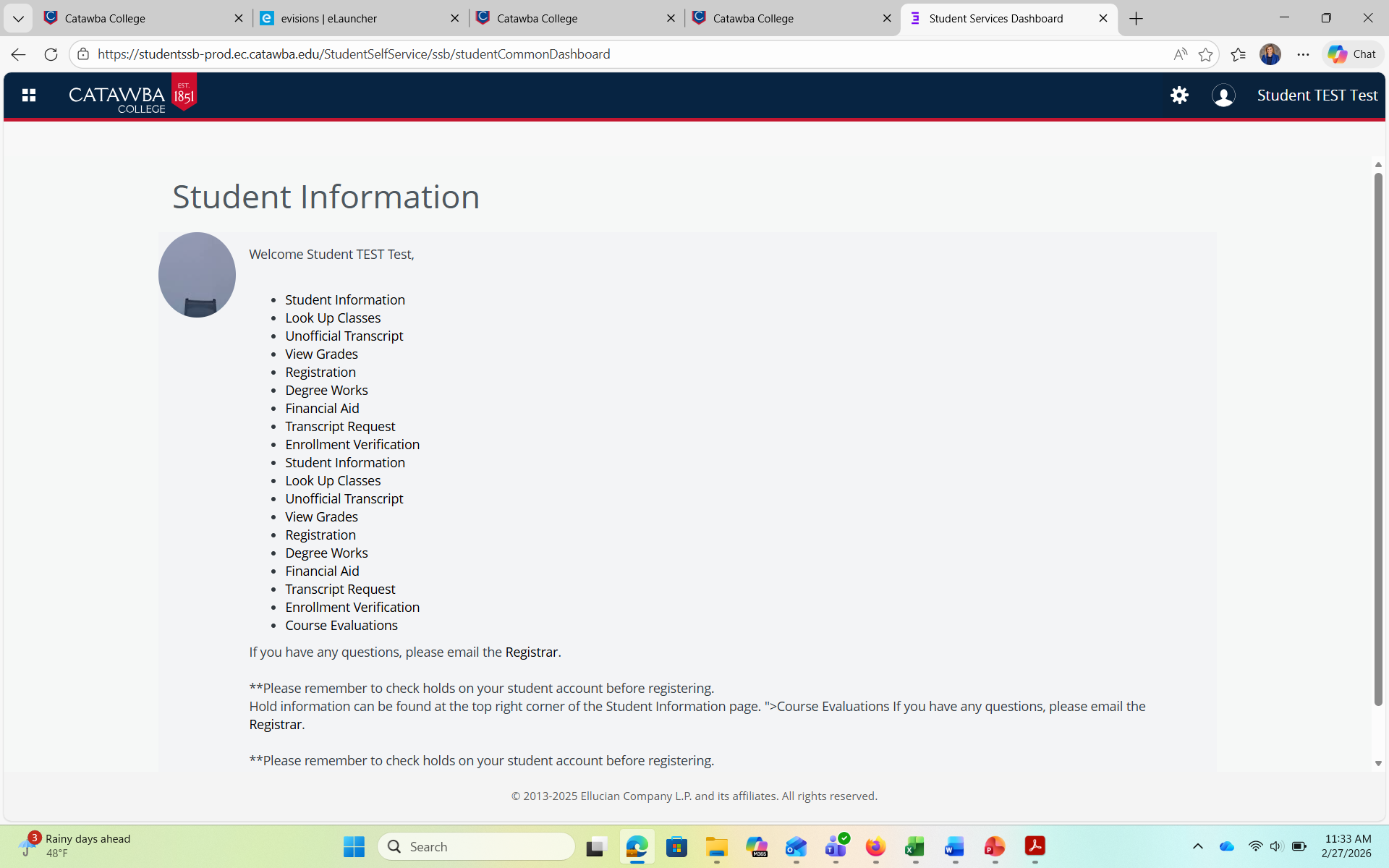
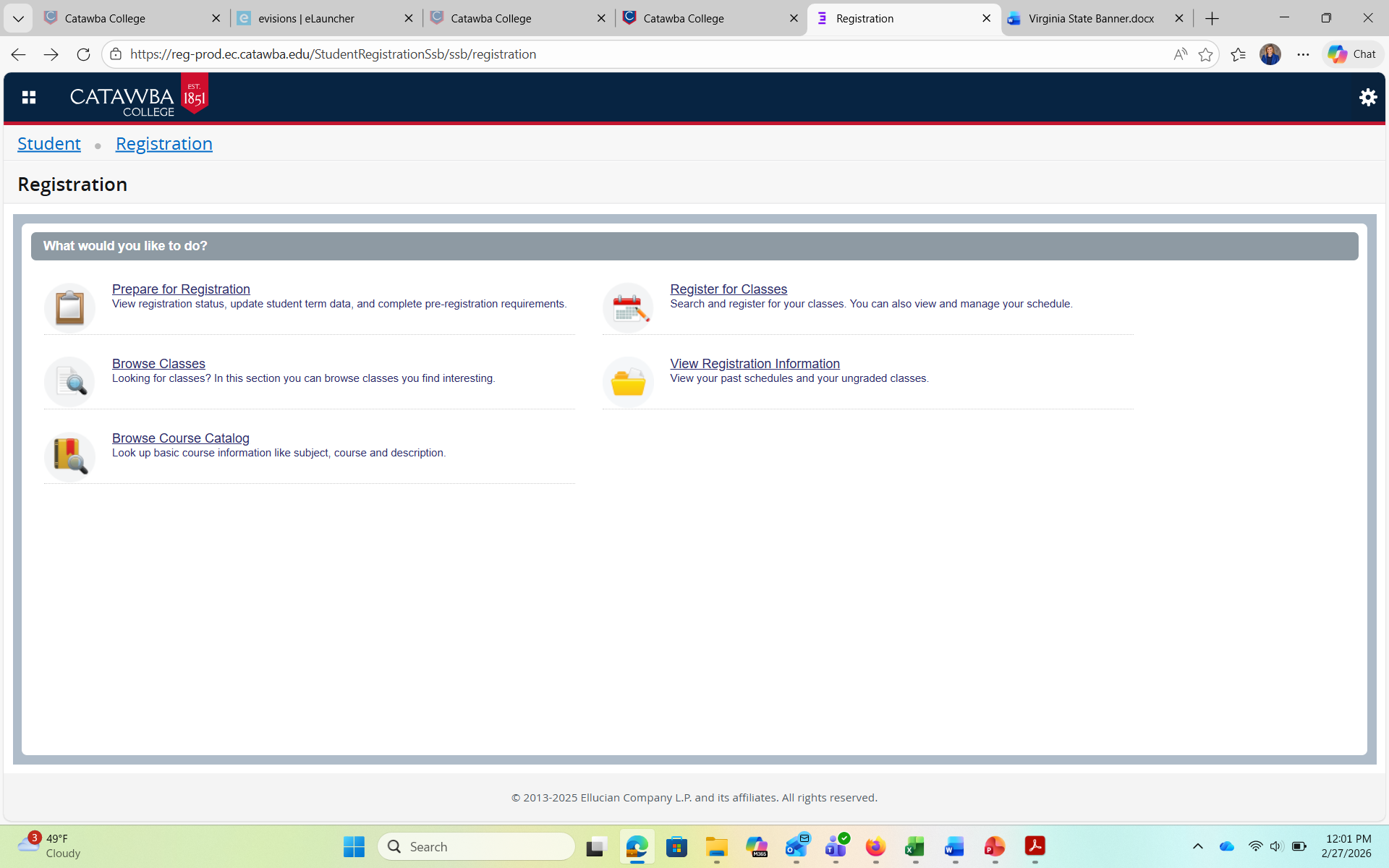
Step 4: From the Registration Screen, you will find options that will allow you to browse and register for classes, as well as browse the course catalog.
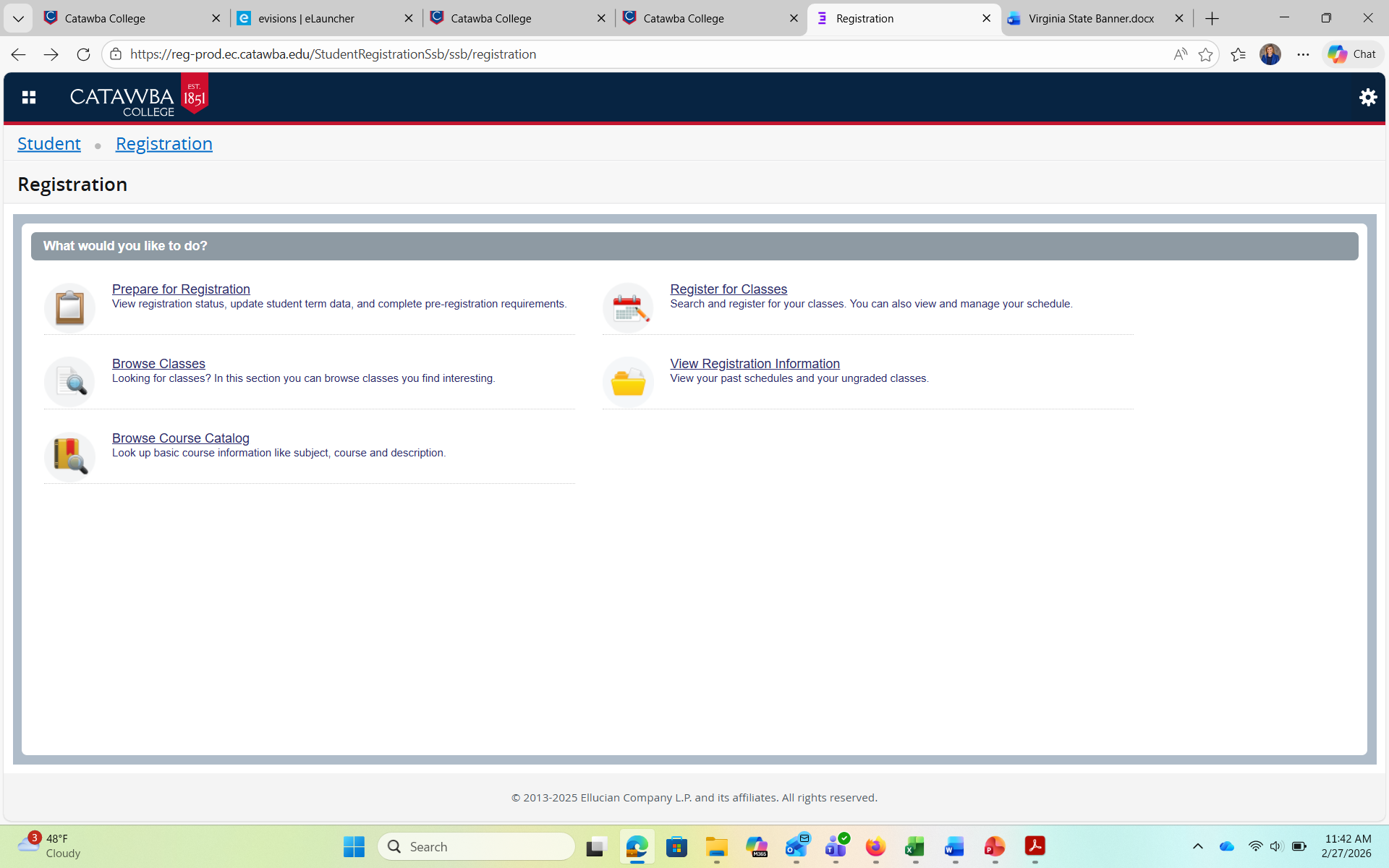
Step 5: Prepare for Registration
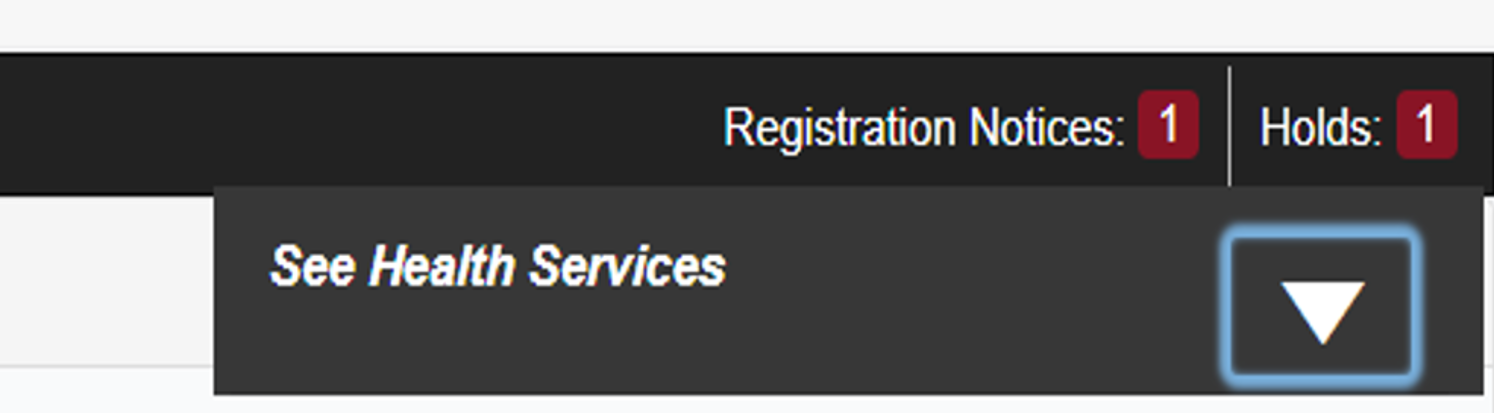
This page will display information that can impact your ability to register. Holds need to be cleared before registration can occur.
Step 6: Register for Classes: Adding and Dropping Classes
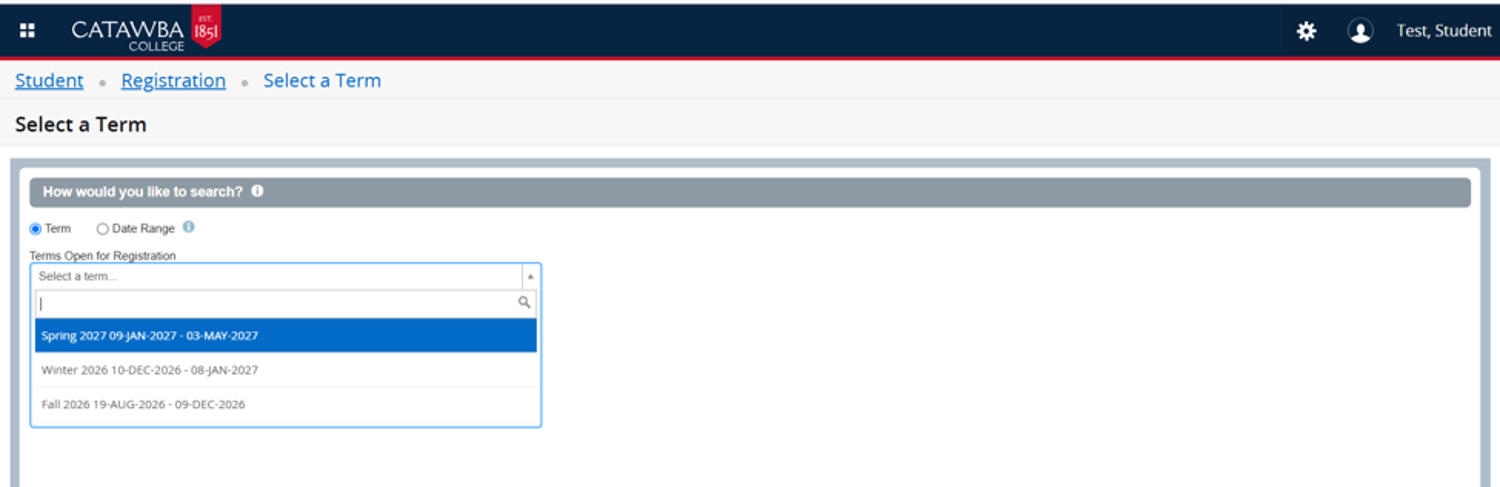
Clicking on Register for Classes will prompt you to enter the term for which you wish to register. You will also need you to enter your PIN.
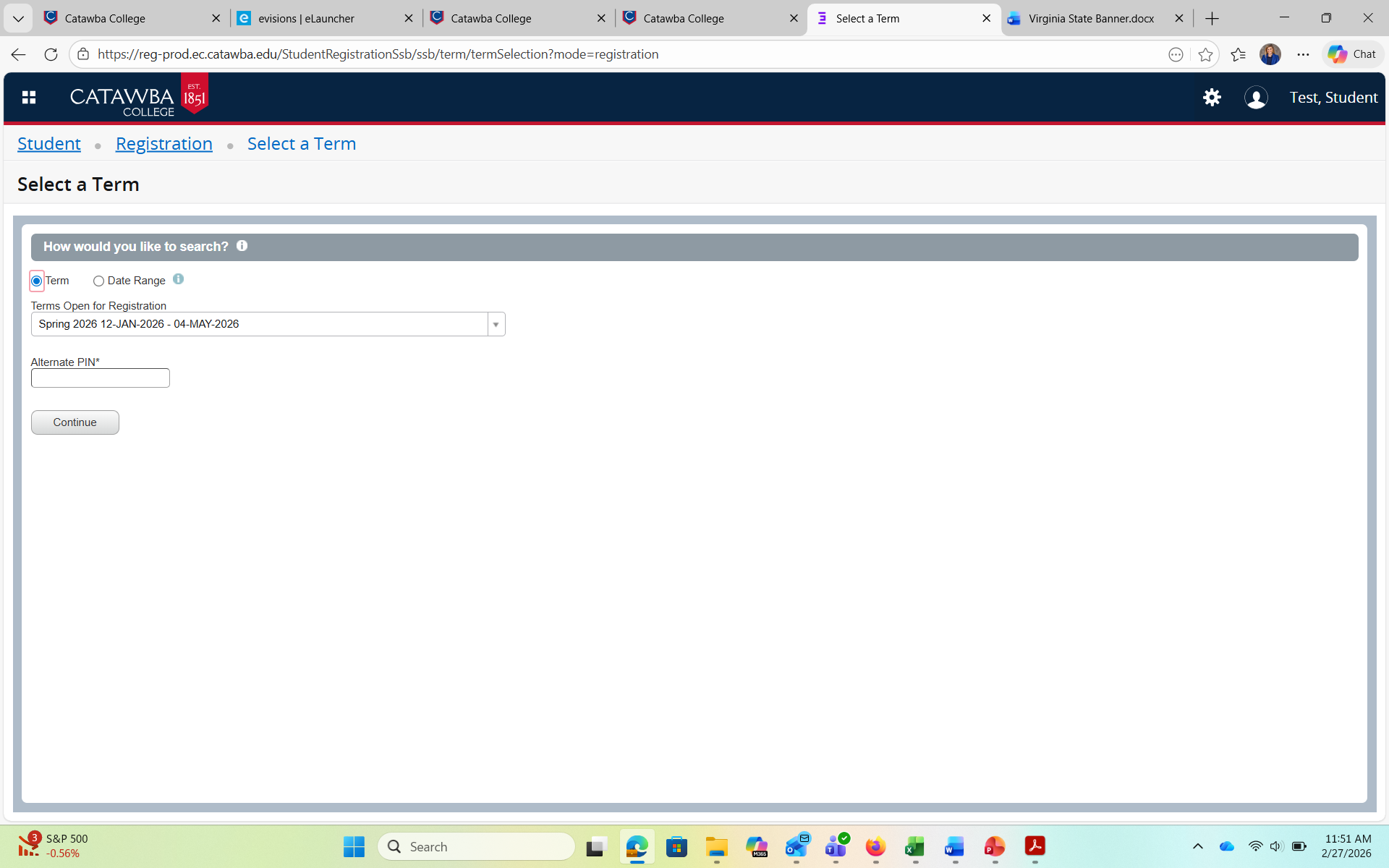
Step 7: Registering for Classes Continued
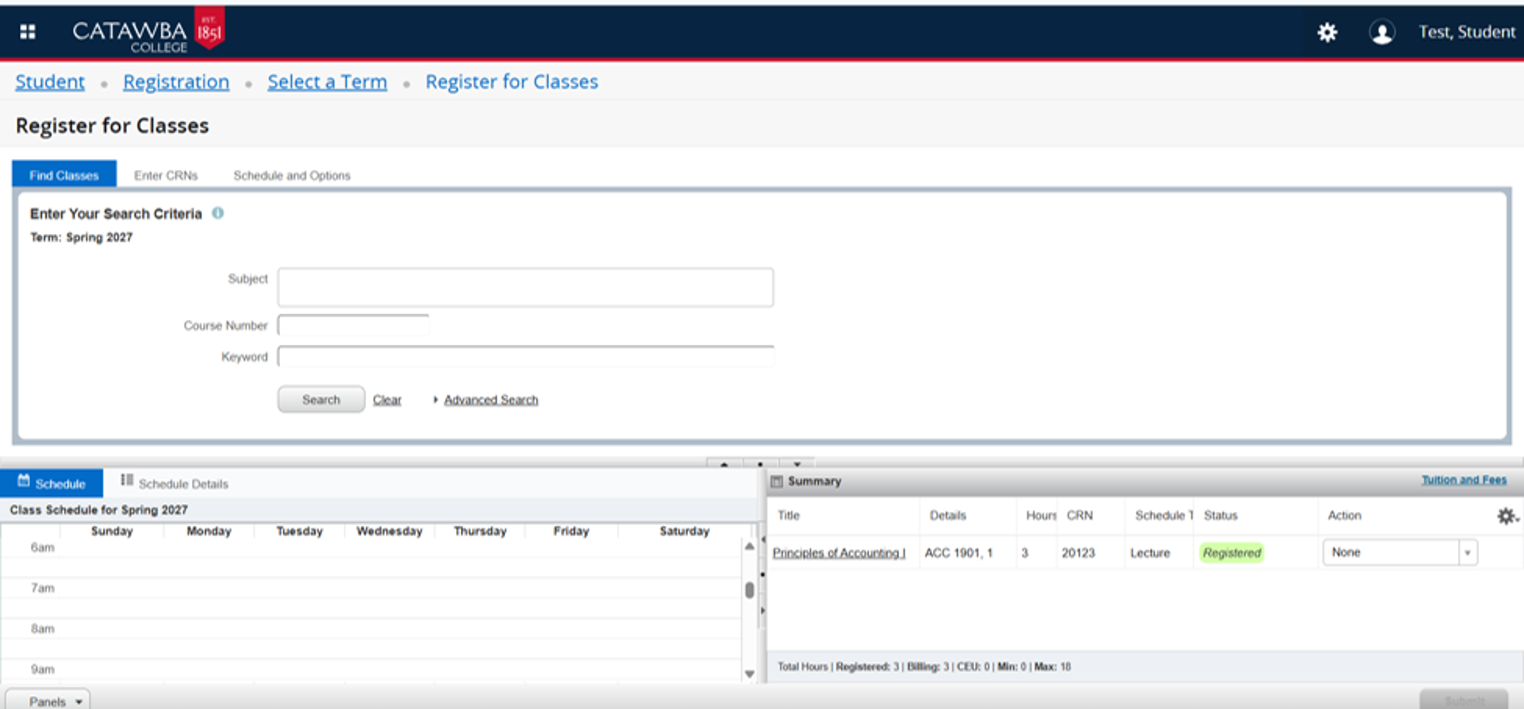
- The Register for Classes will open on the Find Classes tab. Enter the desired search criteria. Note: There are other search options available under the Advanced Search hyperlink.
- Once you’ve located the course you’d like to add, select the desired section and click the Add Please note the system will not allow any time conflicts and closed Sections (FULL).
- The section will be added to the Summary panel in a Pending status. Select Submit to save.
- If you have successfully registered, the status will change to
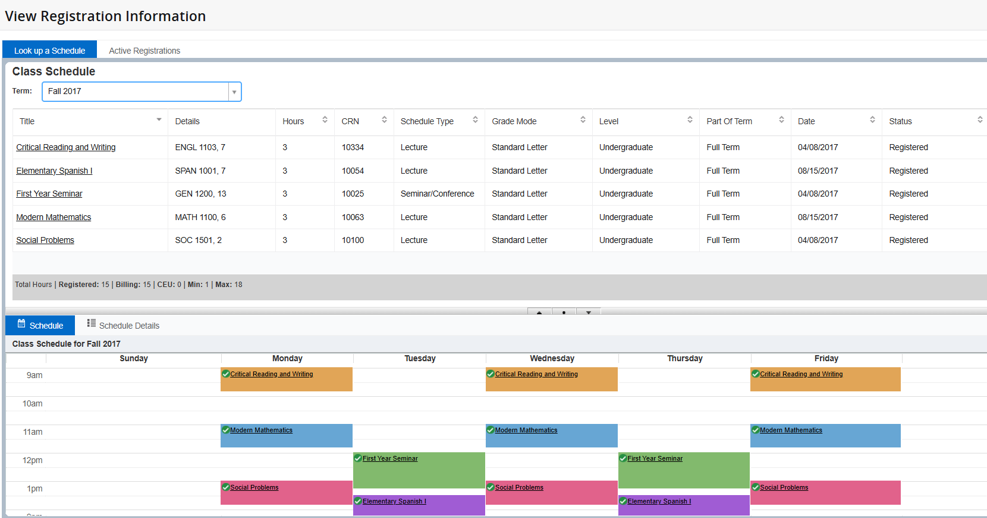
Step 8: View Registration Information
This page will display details about your existing registration. The schedule tab gives you a visual representation of your semester schedule.